
3.7 KiB
Creating the Initial Solution
//[doc-nav]
{
  "Previous": {
    "Name": "Overview",
    "Path": "tutorials/modular-crm/index"
  },
  "Next": {
    "Name": "Setting Up the Catalog Module",
    "Path": "tutorials/modular-crm/part-02"
  }
}
In this first part of this tutorial, we will create a new ABP solution with modularity enabled.
Getting Started with a new ABP Solution
Follow the Get Started guide to create a single layer web application with the following configuration:
- Solution name:
ModularCrm - UI Framework: ASP.NET Core MVC / Razor Pages
- Database Provider: Entity Framework Core
You can select the other options based on your preference but at the Modularity step, check the Setup as a modular solution option and add a new Standard Module named ModularCrm.Catalog:
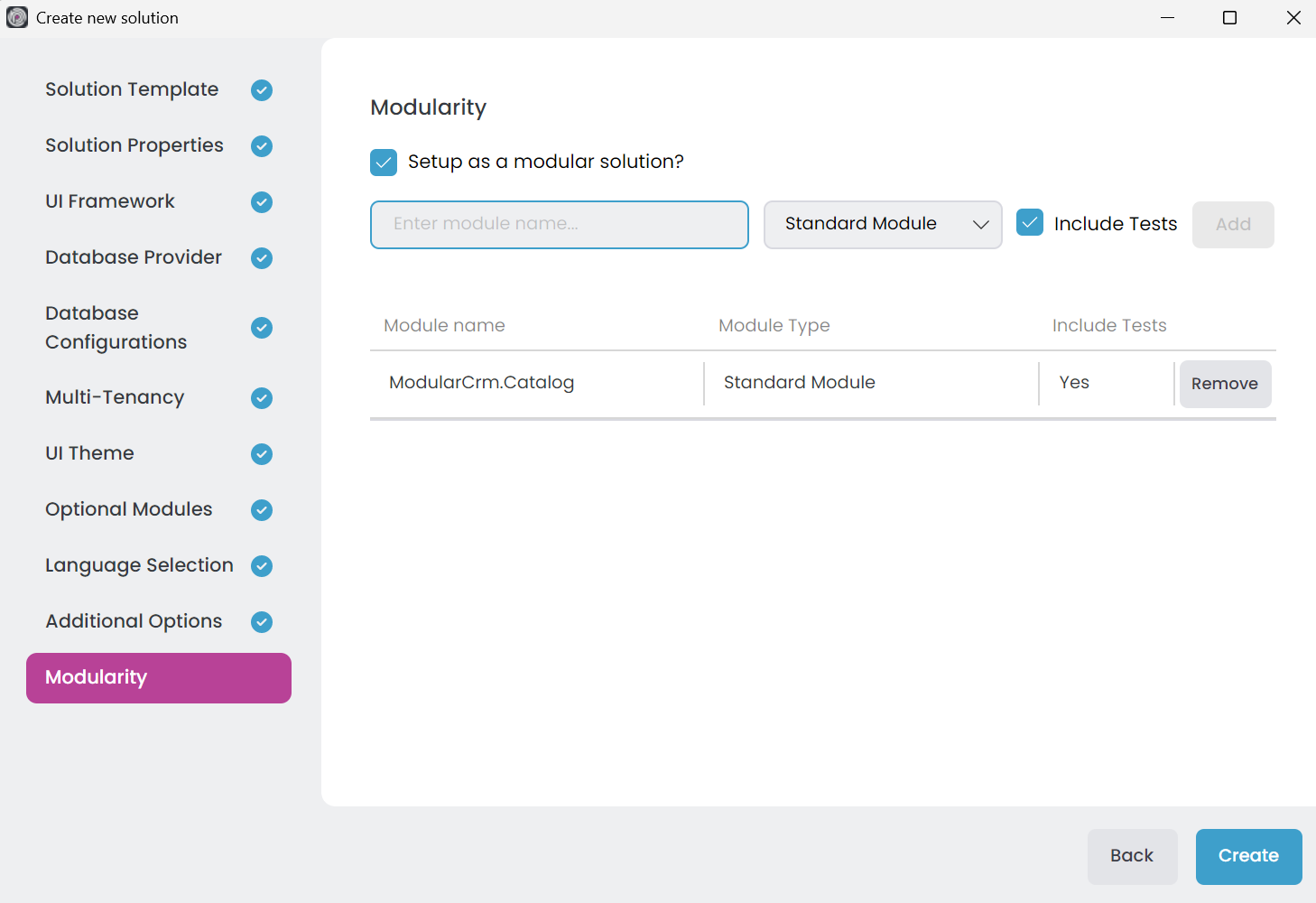
Since modularity is a key aspect of the ABP Framework, it provides an option to create a modular system from the beginning. Here, you're creating a ModularCrm.Catalog module using the Standard Module template.
Note: This tutorial will guide you through creating two modules:
CatalogandOrdering. We've just created theCatalogmodule in the Modularity step. You could also create theOrderingmodule at this stage. However, we'll create theOrderingmodule later in this tutorial to better demonstrate ABP Studio's module management capabilities and to simulate a more realistic development workflow where modules are typically added incrementally as the application evolves.
Please complete the Get Started guide and run the web application before going further.
The Solution Structure
The initial solution structure should be like the following in ABP Studio's Solution Explorer:
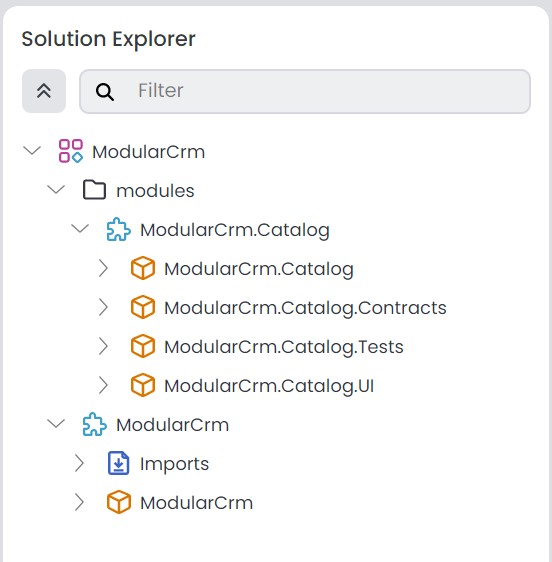
Initially, you see a ModularCrm solution, a ModularCrm module under that solution (our main single layer application), and a modules folder that contains the ModularCrm.Catalog module and its sub .NET projects.
An ABP Studio module is typically a .NET solution and an ABP Studio solution is an umbrella concept for multiple .NET Solutions (see the concepts document for more).
The ModularCrm module is the core of your application, built as a single-layer ASP.NET Core Web application. On the other hand, the ModularCrm.Catalog module consist of four packages (.NET projects) and used to implement the catalog module's functionality.
Catalog Module's Packages
Here are the .NET projects (ABP Studio packages) of the Catalog module:
ModularCrm.Catalog: The main module project that contains your entities, application service implementations and other business objectsModularCrm.Catalog.Contracts: Basically contains application service interfaces and DTOsModularCrm.Catalog.Tests: Unit and integration tests (if you selected the Include Tests option)ModularCrm.Catalog.UI: Contains user interface pages components for the module
Summary
You've created the initial single layer monolith modular solution with a Catalog module included. In the next part, you will learn how install the Catalog module to the main application.