
11 KiB
Quick Start
//[doc-params]
{
    "UI": ["MVC", "BlazorServer", "NG"],
    "DB": ["EF", "Mongo"]
}
This is a single-part quick-start tutorial to build a simple todo application with the ABP Framework. Here's a screenshot from the final application:

You can find the source code of the completed application [here](TODO: sample's url???).
Pre-Requirements
- An IDE (e.g. Visual Studio) that supports .NET 6.0+ development.
{{if DB=="Mongo"}}
{{end}}
{{if UI=="NG"}}
{{end}}
Creating a New Solution
In this tutorial, we will use the ABP CLI to create the sample application with the ABP Framework. You can run the following command in a command-line terminal to install the ABP CLI, if you haven't installed it yet:
dotnet tool install -g Volo.Abp.Cli
Then create an empty folder, open a command-line terminal and execute the following command in the terminal:
abp new TodoApp -t app-nolayers{{if UI=="BlazorServer"}} -u blazor-server{{else if UI=="NG"}} -u angular{{end}}{{if DB=="Mongo"}} -d mongodb{{end}}
{{if UI=="NG"}}
This will create a new solution with a single-project, named TodoApp with angular and aspnet-core folders. Once the solution is ready, open the solution in your favorite IDE.
{{else}}
This will create a new solution with a single-project, named TodoApp. Once the solution is ready, open it in your favorite IDE.
{{end}}
Create the Database
You can run the following command in the directory of your project to create the database and seed the initial data:
dotnet run --migrate-database
This command will create the database and seed the initial data for you. Then you can run the application.
Run the Application
{{if UI=="MVC" || UI=="BlazorServer"}}
It is good to run the application before starting the development. Running the application is pretty straigth-forward, you can run the application with any IDE that supports .NET or by running the dotnet run CLI command in the directory of your project to see the initial UI:
{{else if UI=="NG"}}
It is good to run the application before starting the development. The solution has two main applications:
TodoApp(in the .NET solution) host the server-side HTTP API, so Angular application can consume it. (server-side application)angularfolder contains the Angular application. (client-side application)
Firstly, run the TodoApp project in your favorite IDE (or run the dotnet run CLI command on your project directory) to see the server-side HTTP API on the Swagger UI:

You can explore and test your HTTP API with this UI. If it works, we can run the Angular client application.
First, run the following command (or yarn install) to restore the NPM packages:
npm install
It will take some time to install all packages. Then you can run the application using the following (or yarn start) command:
npm start
This command takes time, but eventually runs and opens the application in your default browser:
{{end}}
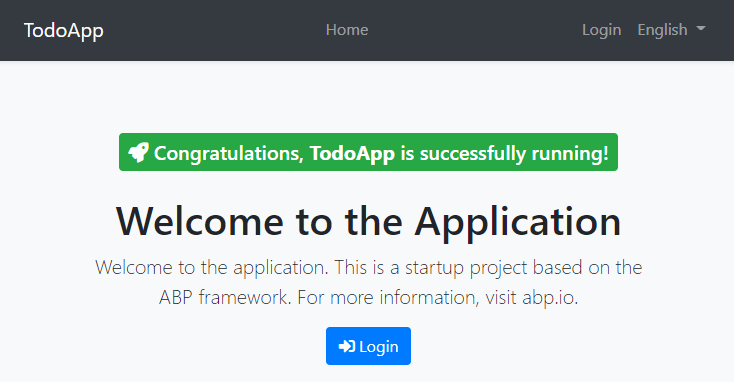
You can click on the Login button, use admin as the username and 1q2w3E* as the password to login to the application.
All ready. We can start coding!
Defining Entities
This application will have a single entity and we can start by creating it. So, create a new TodoItem class under the Entities folder of the project.
using Volo.Abp.Domain.Entities;

namespace TodoApp.Entities;

public class TodoItem : BasicAggregateRoot<Guid>
{
    public string Text { get; set; }
}
BasicAggregateRoot is the simplest base class to create root entities, and Guid is the primary key (Id) of the entity here.
Database Integration
{{if DB=="EF"}}
Next step is to setup the Entity Framework Core configuration.
Mapping Configuration
Open the TodoAppDbContext class (it's under the Data folder) and add a new DbSet property to this class:
public DbSet<TodoItem> TodoItems { get; set; }
Then navigate to the OnModelCreating method in the same class and add the mapping code for the TodoItem entity:
protected override void OnModelCreating(ModelBuilder builder)
{
    base.OnModelCreating(builder);

    /* Include modules to your migration db context */

    builder.ConfigurePermissionManagement();
    ...

    /* Configure your own tables/entities inside here */
    builder.Entity<TodoItem>(b =>
    {
        b.ToTable("TodoItems");
    });
}
We've mapped the TodoItem entity to the TodoItems table in the database. The next step is creating a migration and apply the changes to the database.
Code First Migrations
The startup solution is configured to use Entity Framework Core Code First Migrations. Since we've changed the database mapping configuration, we should create a new migration and apply changes to the database.
Open a command-line terminal in the directory of your project and type the following command:
dotnet ef migrations add Added_TodoItem
This will add a new migration class to the project:
 TODO: add this screenshot???
You can apply changes to the database using the following command, in the same command-line terminal:
dotnet ef database update
{{else if DB=="Mongo"}}
Next step is to setup the MongoDB configuration. Open the TodoAppMongoDbContext class (it's under the Data folder) in your project and make the following changes:
- Add a new property to the class:
public IMongoCollection<TodoItem> TodoItems => Collection<TodoItem>();
- Add the following code inside the
CreateModelmethod:
modelBuilder.Entity<TodoItem>(b =>
{
    b.CollectionName = "TodoItems";
});
{{end}}
After the database integrations, now we can start to create application service methods and implement our use-cases.
Creating the Application Service Interface
An Application Service is used to perform the use cases of the application. We need to perform the following use cases in this application:
- Get the list of the todo items
- Create a new todo item
- Delete an existing todo item
Let's start with defining an interface for the application service. Create a new ITodoAppService interface under the Services folder, as shown below:
using TodoApp.Services.Dtos;
using Volo.Abp.Application.Services;

namespace TodoApp.Services;

public interface ITodoAppService : IApplicationService
{
    Task<List<TodoItemDto>> GetListAsync();
    Task<TodoItemDto> CreateAsync(string text);
    Task DeleteAsync(Guid id);
}
Creating the Data Transfer Object (DTO)
GetListAsync and CreateAsync methods return TodoItemDto. ApplicationService typically gets and returns DTOs (Data Transfer Objects) instead of entities but we haven't created it yet. So, create a new TodoItemDto class under the Dtos folder (it's under the Services folder):
namespace TodoApp.Services.Dtos;

public class TodoItemDto
{
    public Guid Id { get; set; }
    public string Text { get; set; }
}
This is a very simple DTO class that have the same properties with our TodoItem entity. We are ready to implement the ITodoAppService.
Application Service Implementation
Create a TodoAppService class under the Services folder of your project, as shown below:
using TodoApp.Entities;
using Volo.Abp.Application.Services;
using Volo.Abp.Domain.Repositories;

namespace TodoApp.Services;

public class TodoAppService : ApplicationService, ITodoAppService
{
    private readonly IRepository<TodoItem, Guid> _todoItemRepository;

    public TodoAppService(IRepository<TodoItem, Guid> todoItemRepository)
    {
        _todoItemRepository = todoItemRepository;
    }

    // TODO: Implement the methods here...
}
This class inherits from the ApplicationService class of the ABP Framework and implements the ITodoAppService that created in the Creating the Application Service Interface section. ABP provides default generic repositories for the entities. We can use them to perform the fundamental database operations. This class injects IRepository<TodoItem, Guid>, which is the default repository for the TodoItem entity. We will use it to implement the use cases described before.
Getting Todo Items
Let's start by implementing the GetListAsync method:
public async Task<List<TodoItemDto>> GetListAsync()
{
    var items = await _todoItemRepository.GetListAsync();
    return items
        .Select(item => new TodoItemDto
        {
            Id = item.Id,
            Text = item.Text
        }).ToList();
}
We are simply getting the complete TodoItem list from the database, mapping them to TodoItemDto objects and returning as the result.
Creating a New Todo Item
Next method is CreateAsync and we can implement it as shown below:
public async Task<TodoItemDto> CreateAsync(string text)
{
    var todoItem = await _todoItemRepository.InsertAsync(
        new TodoItem {Text = text}
    );

    return new TodoItemDto
    {
        Id = todoItem.Id,
        Text = todoItem.Text
    };
}
The repository's InsertAsync method inserts the given TodoItem to the database and returns the same TodoItem object. It also sets the Id, so we can use it on the returning object. We are simply returning a TodoItemDto by creating from the new TodoItem entity.
Deleting a Todo Item
Finally, we can implement the DeleteAsync as the following code block:
public async Task DeleteAsync(Guid id)
{
    await _todoItemRepository.DeleteAsync(id);
}
The application service is ready to be used from the UI layer.
User Interface Layer
It is time to show the todo items on the UI! Before starting to write the code, it would be good to remember what we are trying to build. Here's a sample screenshot from the final UI:
{{if UI=="MVC"}}
{{else if UI=="BlazorServer"}}
{{else if UI=="NG"}}
{{end}}
Conclusion
In this tutorial, we've built a very simple application to warm up with the ABP Framework.
Source Code
You can find source code of the completed application here.
See Also
- Web Application Development Tutorial to see a real-life web application development in a layered architecture.