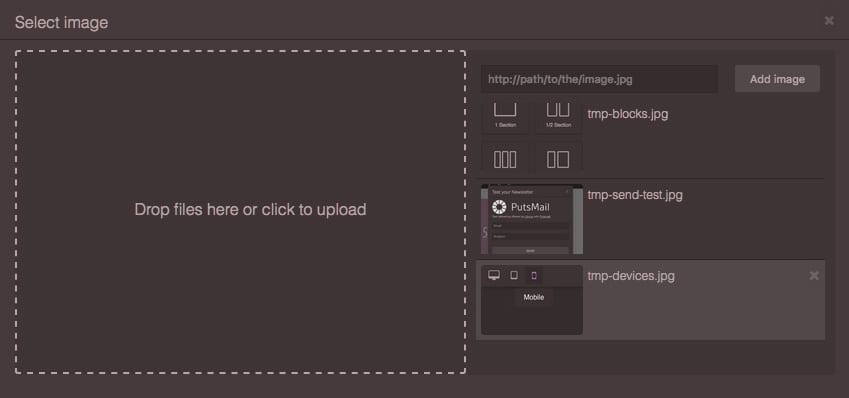
In this section, you will see how to setup and take the full advantage of built-in Asset Manager in GrapesJS. The Asset Manager is lightweight and implements just an `image` in its core, but as you'll see next it's easy to extend and create your own asset types.
[[toc]]
## Configuration
To change default configurations you'll have to pass `assetManager` property with the main configuration object
```js
const editor = grapesjs.init({
...
assetManager: {
assets: [...],
...
}
});
```
You can update most of them later by using `getConfig` inside of the module
```js
const amConfig = editor.AssetManager.getConfig();
```
Below is a list of currently available options
```js
// Default assets
// eg. [
// 'https://...image1.png',
// 'https://...image2.png',
// {type: 'image', src: 'https://...image3.png', someOtherCustomProp: 1},
// ..
// ]
assets: [],
// Content to add where there is no assets to show
// eg. 'No assets here, drag to upload'
noAssets: '',
// Upload endpoint, set `false` to disable upload
// upload: 'https://endpoint/upload/assets',
// upload: false,
upload: 0,
// The name used in POST to pass uploaded files
uploadName: 'files',
// Custom headers to pass with the upload request
headers: {},
// Custom parameters to pass with the upload request, eg. csrf token
params: {},
// The credentials setting for the upload request, eg. 'include', 'omit'
credentials: 'include',
// Allow uploading multiple files per request.
// If disabled filename will not have '[]' appended
multiUpload: true,
// If true, tries to add automatically uploaded assets.
// To make it work the server should respond with a JSON containing assets
// in a data key, eg:
// {
// data: [
// 'https://.../image.png',
// ...
// {src: 'https://.../image2.png'},
// ...
// ]
// }
autoAdd: 1,
// Text on upload input
uploadText: 'Drop files here or click to upload',
// Label for the add button
addBtnText: 'Add image',
// Custom uploadFile function
// @example
// uploadFile: (e) => {
// var files = e.dataTransfer ? e.dataTransfer.files : e.target.files;
// // ...send somewhere
// }
uploadFile: '',
// Handle the image url submit from the built-in 'Add image' form
// @example
// handleAdd: (textFromInput) => {
// // some check...
// editor.AssetManager.add(textFromInput);
// }
handleAdd: '',
// Enable an upload dropzone on the entire editor (not document) when dragging
// files over it
dropzone: 1,
// Open the asset manager once files are been dropped via the dropzone
openAssetsOnDrop: 1,
// Any dropzone content to append inside dropzone element
dropzoneContent: '',
// Default title for the asset manager modal
modalTitle: 'Select Image',
```
Sometimes the code gets ahead of the docs, therefore we'd suggest to keep an eye at the current state of configurations by checking the dedicated source file [Asset Manager Config](https://github.com/artf/grapesjs/blob/dev/src/asset_manager/config/config.js)
## Initialization
The Asset Manager is ready to work by default, so pass few URLs to see them loaded
```js
const editor = grapesjs.init({
...
assetManager: {
assets: [
'http://placehold.it/350x250/78c5d6/fff/image1.jpg',
// Pass an object with your properties
{
type: 'image',
src: 'http://placehold.it/350x250/459ba8/fff/image2.jpg',
height: 350,
width: 250
},
{
// As the 'image' is the base type of assets, omitting it will
// be set as `image` by default
src: 'http://placehold.it/350x250/79c267/fff/image3.jpg',
height: 350,
width: 250
},
],
}
});
```
If you want a complete list of available properties check out the source [AssetImage Model](https://github.com/artf/grapesjs/blob/dev/src/asset_manager/model/AssetImage.js)
The built-in Asset Manager modal is implemented and is showing up when requested. By default, you can make it appear by dragging Image Components in canvas, double clicking on images and all other stuff related to images (eg. CSS styling)
Making the modal appear is registered with a command, so you can make it appear with this
```js
// This command shows only assets with `image` type
editor.runCommand('open-assets');
```
Worth nothing that by doing this you can't do much with assets (if you double click on them nothing happens) and this is because you've not indicated any target. Try just to select an image in your canvas and run this in console (you should first make the editor globally available `window.editor = editor;` in your script)
```js
editor.runCommand('open-assets', {
target: editor.getSelected()
});
```
Now you should be able to change the image of the component.
## Customization
If you want to customize the Asset Manager after the initialization you have to use its [APIs](API-Asset-Manager)
```js
// Get the Asset Manager module first
const am = editor.AssetManager;
```
First of all, it's worth nothing that Asset Manager keeps 2 collections of assets:
* **global** - which is just the one with all available assets, you can get it with `am.getAll()`
* **visible** - this is the collection which is currently rendered by the Asset Manager, you get it with `am.getAllVisible()`
This allows you to decide which assets to show and when. Let's say we'd like to have a category switcher, first of all you gonna add to the **global** collection all your assets (which you may already defined at init by `config.assetManager.assets = [...]`)
```js
am.add([
{
// You can pass any custom property you want
category: 'c1',
src: 'http://placehold.it/350x250/78c5d6/fff/image1.jpg',
}, {
category: 'c1',
src: 'http://placehold.it/350x250/459ba8/fff/image2.jpg',
}, {
category: 'c2',
src: 'http://placehold.it/350x250/79c267/fff/image3.jpg',
}
// ...
]);
```
Now if you call the `render()`, without an argument, you will see all the assets rendered
```js
// without any argument
am.render();
am.getAll().length // <- 3
am.getAllVisible().length // <- 3
```
Ok, now let's show only assets form the first category
```js
const assets = am.getAll();
am.render(assets.filter(
asset => asset.get('category') == 'c1'
));
am.getAll().length // Still have 3 assets
am.getAllVisible().length // but only 2 are shown
```
You can also mix arrays of assets
```js
am.render([...assets1, ...assets2, ...assets3]);
```
If you want to customize the asset manager container you can get its `HTMLElement`
```js
am.getContainer().insertAdjacentHTML('afterbegin', '');
```
For more APIs methods check out the [API Reference](API-Asset-Manager)
### Define new Asset type
Generally speaking, images aren't the only asset you'll use, it could be a `video`, `svg-icon`, or any other kind of `document`. Each type of asset is applied in our templates/pages differently. If you need to change the image of the Component all you need is another `url` in `src` attribute. However In case of a `svg-icon`, its not the same, you might want to replace the element with a new `