
11 KiB
| title |
|---|
| Block Manager |
Block Manager
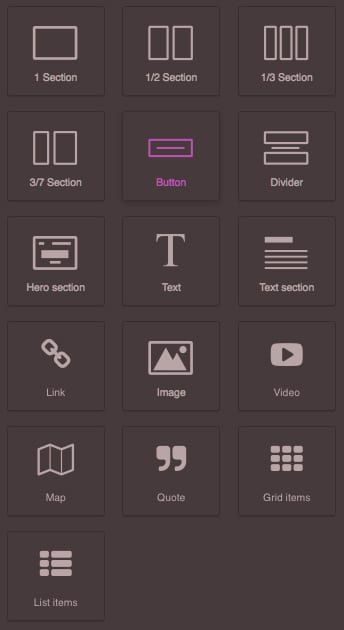
A Block is a simple object which allows the end-user to reuse your Components. It can be connected to a single Component or to a complex composition of them. In this guide, you will see how to setup and take full advantage of the built-in Block Manager UI in GrapesJS. The default UI is a lightweight component with built-in Drag & Drop support, but as you'll see next in this guide, it's easy to extend and create your own UI manager.
::: warning To get a better understanding of the content in this guide, we recommend reading Components first :::
Configuration
To change the default configurations you have to pass the blockManager property with the main configuration object.
const editor = grapesjs.init({
  ...
  blockManager: {
    blocks: [...],
    ...
  }
});
Check the full list of available options here: Block Manager Config
Initialization
By default, Block Manager UI is considered a hidden component. Currently, the GrapesJS core, renders default panels and buttons that allow you to show them, but in long term, this is something that might will change. Here below you can see how to init the editor without default panels and immediately rendered Block Manager UI.
::: tip Follow the Getting Started guide in order to setup properly the editor with custom panels. :::
const editor = grapesjs.init({
  container: '#gjs',
  height: '100%',
  storageManager: false,
  panels: { defaults: [] }, // Avoid default panels
  blockManager: {
    appendTo: '.myblocks',
    blocks: [
      {
        id: 'image',
        label: 'Image',
        media: `<svg style="width:24px;height:24px" viewBox="0 0 24 24">
            <path d="M8.5,13.5L11,16.5L14.5,12L19,18H5M21,19V5C21,3.89 20.1,3 19,3H5A2,2 0 0,0 3,5V19A2,2 0 0,0 5,21H19A2,2 0 0,0 21,19Z" />
        </svg>`,
        // Use `image` component
        content: { type: 'image' },
        // The component `image` is activatable (shows the Asset Manager).
        // We want to activate it once dropped in the canvas.
        activate: true,
        // select: true, // Default with `activate: true`
      }
    ],
  }
});
Block content types
The key of connecting blocks to components is the block.content property and what we passed in the example above is the Component Definition. This is the component-oriented way to create blocks and this is how we highly recommend the creation of your blocks.
Component-oriented
The content can accept different formats, like an HTML string (which will be parsed and converted to components), but the component-oriented approach is the most precise as you can keep the control of your each dropped block in the canvas. Another advice is to keep your blocks' Component Definition as light as possible, if you're defining a lot of redundent properties, probably it makes sense to create another dedicated component, this might reduce the size of your project JSON file. Here an example:
// Your components
editor.Components.addType('my-cmp', {
  model: {
    defaults: {
      prop1: 'value1',
      prop2: 'value2',
    }
  }
});
// Your blocks
[
  { ..., content: { type: 'my-cmp', prop1: 'value1-EXT', prop2: 'value2-EXT' } }
  { ..., content: { type: 'my-cmp', prop1: 'value1-EXT', prop2: 'value2-EXT' } }
  { ..., content: { type: 'my-cmp', prop1: 'value1-EXT', prop2: 'value2-EXT' } }
]
Here we're reusing the same component multiple times with the same set of properties (just an example, makes more sense with composed content of components), this can be reduced to something like this.
// Your components
editor.Components.addType('my-cmp', { ... });
editor.Components.addType('my-cmp-alt', {
  extend: 'my-cmp',
  model: {
    defaults: {
      prop1: 'value1-EXT',
      prop2: 'value2-EXT'
    }
  }
});
// Your blocks
[
  { ..., content: { type: 'my-cmp-alt' } }
  { ..., content: { type: 'my-cmp-alt' } }
  { ..., content: { type: 'my-cmp-alt' } }
]
HTML strings
Using HTML strings as content is not wrong, in some cases you don't need the finest control over components and want to leave the user full freedom on template composition (eg. static site builder editor with HTML copy-pasted from some framework like Tailwind Components)
// Your block
{
  // ...
  content: `<div class="el-X">
    <div class="el-Y el-A">Element A</div>
    <div class="el-Y el-B">Element B</div>
    <div class="el-Y el-C">Element C</div>
  </div>`
}
In such a case, all rendered elements will be converted to the best suited default component (eg. .el-Y elements will be treated like text components). The user will be able to style and drag them with no particular restrictions.
Thanks to Components' isComponet feature (executed post parsing), you're still able to bind your rendered elements to components and enforce an extra logic. Here an example how you would enforce all .el-Y elements to be placed only inside .el-X one, without touching any part of the original HTML used in the content.
// Your component
editor.Components.addType('cmp-Y', {
  // Detect '.el-Y' elements
  isComponent: el => el.classList?.contains('el-Y'),
  model: {
    defaults: {
      name: 'Component Y', // Simple custom name
      draggable: '.el-X', // Add `draggable` logic
    }
  }
});
Another alternative is to leverage data-gjs-* attributes (used by GrapesJS parser) to attach properties to components.
// -- [Option 1]: Declare type in HTML strings --
{
  // ...
  content: `<div class="el-X">
    <div data-gjs-type="cmp-Y" class="el-Y el-A">Element A</div>
    <div data-gjs-type="cmp-Y" class="el-Y el-B">Element B</div>
    <div data-gjs-type="cmp-Y" class="el-Y el-C">Element C</div>
  </div>`
}
// Component
editor.Components.addType('cmp-Y', {
  // You don't need `isComponent` anymore as you declare types already on elements
  model: {
    defaults: {
      name: 'Component Y', // Simple custom name
      draggable: '.el-X', // Add `draggable` logic
    }
  }
});

// -- [Option 2]: Declare properties in HTML strings (less recommended) --
{
  // ...
  content: `<div class="el-X">
    <div data-gjs-name="Component Y" data-gjs-draggable=".el-X" class="el-Y el-A">Element A</div>
    <div data-gjs-name="Component Y" data-gjs-draggable=".el-X" class="el-Y el-B">Element B</div>
    <div data-gjs-name="Component Y" data-gjs-draggable=".el-X" class="el-Y el-C">Element C</div>
  </div>`
}
// No need for a custom component.
// You're already defining properties of each element.
Important caveats
::: danger Read carefully :::
Avoid non serializable properties
Don't put non serializable properties, like functions, in your blocks, keep them only in your components.
// Your block
{
  content: {
    type: 'my-cmp',
    script() {...},
  },
}
This will work, but if you try to save and reload a stored project, those will disappear.
DONT PUT IDS in your content
The difference between components and blocks: The component is more atomic, so a single image, a text box or a map is a component. The block is what the end user will drag inside the canvas, so it could contain a single image (single Component) or the entire section like, for example, the footer with a lot of components inside (texts, images, inputs, etc).
Check out the Components page to see the list of built-in components and how to create your own.
Let's see how to add a new block to the editor using the Blocks API
var editor = grapesjs.init({...});
var blockManager = editor.BlockManager;

// 'my-first-block' is the ID of the block
blockManager.add('my-first-block', {
  label: 'Simple block',
  content: '<div class="my-block">This is a simple block</div>',
});
With this snippet a new block will be added to the collection. You can also update existent blocks
blockManager.get('my-first-block').set({
  label: 'Updated simple block',
  attributes: {
    title: 'My title'
  }
})
As you see a simple HTML string is enough to create a block, the editor will do the rest. If you want you could also pass an object representing the Component.
blockManager.add('my-map-block', {
  label: 'Simple map block',
  content: {
    type: 'map', // Built-in 'map' component
    style: {
      height: '350px'
    },
    removable: false, // Once inserted it can't be removed
  }
})
From v0.3.70 it's also possible to pass the HTML string with Component's properties as attributes.
blockManager.add('the-row-block', {
  label: '2 Columns',
  content: '<div class="row" data-gjs-droppable=".row-cell" data-gjs-custom-name="Row">' +
      '<div class="row-cell" data-gjs-draggable=".row"></div>' +
      '<div class="row-cell" data-gjs-draggable=".row"></div>' +
    '</div>',
});
In the example above you're defining a row component which will accept only elements which match '.row-cell' selector and cells which could be dragged only inside '.row' elements. We're also defining the custom name which will be seen inside the Layers panel. If you want to check the complete list of available Component's properties, check directly the Component model source: https://github.com/artf/grapesjs/blob/dev/src/dom_components/model/Component.js
Custom render
If you need to customize the aspect of each block you can pass a render callback function in the block definition. Let's see how it works.
As a first option, you can return a simple HTML string, which will be used as a new inner content of the block. As an argument of the callback you will get an object containing the following properties:
model- Block's model (so you can use any passed property to it)el- Current rendered HTMLElement of the blockclassName- The base class name used for blocks (useful if you follow BEM, so you can create classes like${className}__elem)
blockManager.add('some-block-id', {
  label: `<div>
      <img src="https://picsum.photos/70/70"/>
      <div class="my-label-block">Label block</div>
    </div>`,
  content: '<div>...</div>',
  render: ({ model, className }) => `<div class="${className}__my-wrap">
      Before label
      ${model.get('label')}
      After label
    </div>`,
});
Another option would be to avoid returning from the callback (in that case nothing will be replaced) and edit only the current el block element
blockManager.add('some-block-id', {
  // ...
  render: ({ el }) => {
    const btn = document.createElement('button');
    btn.innerHTML = 'Click me';
    btn.addEventListener('click', () => alert('Do something'))
    el.appendChild(btn);
  },
});