
16 KiB
| title |
|---|
| Asset Manager |
Asset Manager
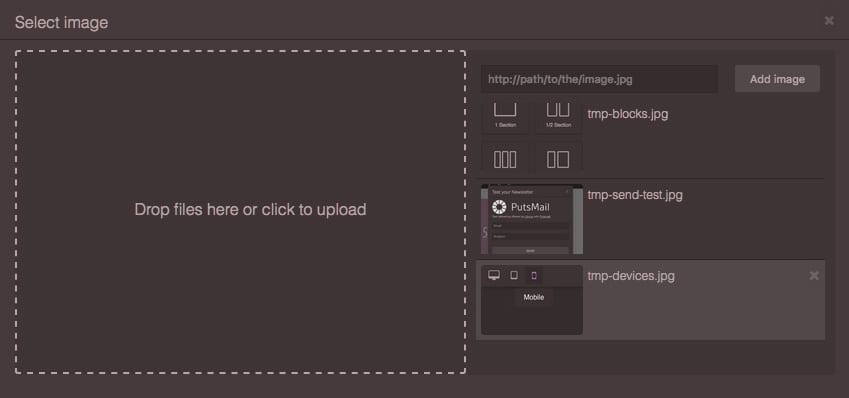
In this section, you will see how to setup and take the full advantage of built-in Asset Manager in GrapesJS, which is intentionally lightweight and implements just an image in its core, but as you'll see next it's easy to extend and create your own asset types.
Configuration
To change default configurations you have to pass assetManager property with the main configuration object
const editor = grapesjs.init({
  ...
  assetManager: {
    assets: [...],
    ...
  }
});
You can update most of them later by using getConfig inside of the module
const amConfig = editor.AssetManager.getConfig();
Below the list of currently available options
  // Default assets
  // eg. [
  //  'https://...image1.png',
  //  'https://...image2.png',
  //  {type: 'image', src: 'https://...image3.png', someOtherCustomProp: 1},
  //  ..
  // ]
  assets: [],

  // Content to add where there is no assets to show
  // eg. 'No <b>assets</b> here, drag to upload'
  noAssets: '',

  // Upload endpoint, set `false` to disable upload
  // upload: 'https://endpoint/upload/assets',
  // upload: false,
  upload: 0,

  // The name used in POST to pass uploaded files
  uploadName: 'files',

  // Custom headers to pass with the upload request
  headers: {},

  // Custom parameters to pass with the upload request, eg. csrf token
  params: {},

  // The credentials setting for the upload request, eg. 'include', 'omit'
  credentials: 'include',

  // Allow uploading multiple files per request.
  // If disabled filename will not have '[]' appended
  multiUpload: true,

  // If true, tries to add automatically uploaded assets.
  // To make it work the server should respond with a JSON containing assets
  // in a data key, eg:
  // {
  //  data: [
  //    'https://.../image.png',
  //    ...
  //    {src: 'https://.../image2.png'},
  //    ...
  //  ]
  // }
  autoAdd: 1,

  // Text on upload input
  uploadText: 'Drop files here or click to upload',

  // Label for the add button
  addBtnText: 'Add image',

  // Custom uploadFile function
  // @example
  // uploadFile: (e) => {
  //   var files = e.dataTransfer ? e.dataTransfer.files : e.target.files;
  //   // ...send somewhere
  // }
  uploadFile: '',

  // Handle the image url submit from the built-in 'Add image' form
  // @example
  // handleAdd: (textFromInput) => {
  //   // some check...
  //   editor.AssetManager.add(textFromInput);
  // }
  handleAdd: '',

  // Enable an upload dropzone on the entire editor (not document) when dragging
  // files over it
  dropzone: 1,

  // Open the asset manager once files are been dropped via the dropzone
  openAssetsOnDrop: 1,

  // Any dropzone content to append inside dropzone element
  dropzoneContent: '',

  // Default title for the asset manager modal
  modalTitle: 'Select Image',
Not always docs are in inline with its code, therefore we'd suggest to keep an eye at the current state of configurations by checking the dedicated source file Asset Manager Config
Initialization
The Asset Manager is ready to work by default, so just pass few urls to see them loaded
const editor = grapesjs.init({
  ...
  assetManager: {
    assets: [
     'http://placehold.it/350x250/78c5d6/fff/image1.jpg',
     // Pass an object with your properties
     {
       type: 'image',
       src: 'http://placehold.it/350x250/459ba8/fff/image2.jpg',
       height: 350,
       width: 250
     },
     {
       // As the 'image' is the base type of assets, omitting it will
       // be set as `image` by default
       src: 'http://placehold.it/350x250/79c267/fff/image3.jpg',
       height: 350,
       width: 250
     },
    ],
  }
});
If you want a complete list of available properties check the source AssetImage Model
The built-in Asset Manager modal is implemented and is showing up when requested. By default, you can make it appear by dragging Image Components in canvas, double clicking on images and all other stuff related to images (eg. CSS styling)
Showing up of the modal is registered with a command, so you can make it appear with this
// This command shows only assets with `image` type
editor.runCommand('open-assets');
Worth nothing that by doing this you can't do much with assets (if you double click on them nothing happens) and this is because you've not indicated any target. Try just to select an image in your canvas and run this in console (you should first make the editor globally available window.editor = editor; in your script)
editor.runCommand('open-assets', {
  target: editor.getSelected()
});
Now you should be able to change the image of the component.
Customization
If you want to customize the Asset Manager after the initialization you have to use its APIs
// Get the Asset Manager module first
const am = editor.AssetManager;
First of all, it's worth nothing that Asset Manager keeps 2 collections of assets:
- global - which is just the one with all available assets, you can get it with
am.getAll() - visible - this is the collection which is currently rendered by the Asset Manager, you get it with
am.getAllVisible()
This allows you to decide which assets to show and when. Let's say we'd like to have a category switcher, first of all you gonna add to the global collection all your assets (which you may already defined at init by config.assetManager.assets = [...])
am.add([
  {
    // You can pass any custom property you want
    category: 'c1',
    src: 'http://placehold.it/350x250/78c5d6/fff/image1.jpg',
  }, {
    category: 'c1',
    src: 'http://placehold.it/350x250/459ba8/fff/image2.jpg',
  }, {
    category: 'c2',
    src: 'http://placehold.it/350x250/79c267/fff/image3.jpg',
  }
  // ...
]);
Now if you call the render(), without any argument, you will see all the assets rendered
// without any argument
am.render();

am.getAll().length // <- 3
am.getAllVisible().length // <- 3
Ok, now let's show only assets form the first category
const assets = am.getAll();

am.render(assets.filter(
  asset => asset.get('category') == 'c1'
));

am.getAll().length // Still have 3 assets
am.getAllVisible().length // but only 2 are shown
Obviously, you can mix more arrays of assets
am.render([...assets1, ...assets2, ...assets3]);
If you want to customize the asset manager container you can get its HTMLElement
am.getContainer().insertAdjacentHTML('afterbegin', '<div><button type="button">Click</button></div>');
For more APIs methods check out the API Reference
Define new Asset type
Generally speaking, an asset is not only an image, it could be a video, svg-icon, or any other kind of document. Each type of the asset is applied in our templates/pages differently. If you need to change the image of the Component all you need is another url in src attribute, but in case of svg-icon, for instance, its not the same, you might want to replace the element with a new <svg> content. Besides this you also have to deal with the presentation/preview of the asset inside the panel/modal, like for example showing a thumbnail for big images or the possibility to preview videos.
Defining a new asset it means we have to push on top of the 'Stack of Types' a new layer. This stack is iterated by the editor at any addition of the asset and tries to associate the correct type.
am.add('https://.../image.png');
// string, url, ends with '.png' -> it's an 'image' type

am.add('<svg ...');
// string and starts with '<svg...' -> 'svg' type

am.add({type: 'video', src: '...'});
// an object, has 'video' type key -> 'video' type
Obviously, it's up to you tell the editor how to recognize your type and for this purpose you have to use isType() method.
Let's see now an example of how we'd start to defining a type like svg-icon
am.addType('svg-icon', {
  // `value` is for example the argument passed in `am.add(VALUE);`
  isType(value) {
    // The condition is intentionally simple
    if (value.substring(0, 5) == '<svg ') {
      return {
        type: 'svg-icon',
        svgContent: value
      };
    }
    // Maybe you pass the `svg-icon` object already
    else if (typeof value == 'object' && value.type == 'svg-icon') {
      return value;
    }
  }
})
With this snippet you can already add SVGs, the asset manager will assign correctly the appropriate type.
// Add some random SVG
am.add(`<svg viewBox="0 0 24 24" xmlns="http://www.w3.org/2000/svg">
  <path d="M22,9 C22,8.4 21.5,8 20.75,8 L3.25,8 C2.5,8 2,8.4 2,9 L2,15 C2,15.6 2.5,16 3.25,16 L20.75,16 C21.5,16 22,15.6 22,15 L22,9 Z M21,15 L3,15 L3,9 L21,9 L21,15 Z"></path>
  <polygon points="4 10 5 10 5 14 4 14"></polygon>
</svg>`);
The default open-assets command shows only image assets, so to render svg-icon run this
am.render(am.getAll().filter(
  asset => asset.get('type') == 'svg-icon'
));
You should see something like this
The SVG asset is not correctly rendered and this is because we haven't yet configured its view
am.addType('svg-icon', {
  view: {
    // `getPreview()` and `getInfo()` are just few helpers, you can
    // override the entire template with `template()`
    // Check the base `template()` here:
    // https://github.com/artf/grapesjs/blob/dev/src/asset_manager/view/AssetView.js
    getPreview() {
      return `<div style="text-align: center">${this.model.get('svgContent')}</div>`;
    },
    getInfo() {
      // You can use model's properties if you passed them:
      // am.add({
      //  type: 'svg-icon',
      //  svgContent: '<svg ...',
      //  name: 'Some name'
      //  })
      //  ... then
      //  this.model.get('name');
      return '<div>SVG description</div>';
    },
  },
  isType(value) {...}
})
This is the result
Now we have to deal with how to assign our svgContent to the selected element
am.addType('svg-icon', {
  view: {
    // In our case the target is the selected component
    updateTarget(target) {
      const svg = this.model.get('svgContent');

      // Just to make things bit interesting, if it's an image type
      // I put the svg as a data uri, content otherwise
      if (target.get('type') == 'image') {
        // Tip: you can also use `data:image/svg+xml;utf8,<svg ...` but you
        // have to escape few chars
        target.set('src', `data:mime/type;base64,${btoa(svg)}`);
      } else {
        target.set('content', svg);
      }
    },
    ...
  },
  isType(value) {...}
})
Our custom svg-icon asset is ready to use, you can also add a model to the addType definition which should group the business logic of your asset but usually it's optional so you can skip this part.
// Just an example of model use
am.addType('svg-icon', {
  model: {
    // With `default` you define model's default properties
    defaults: {
      type:  'svg-icon',
      svgContent: '',
      name: 'Default SVG Name',
    },

    // You can call model's methods inside views:
    // const name = this.model.getName();
    getName() {
      return this.get('name');
    }
  },
  view: {...},
  isType(value) {...}
})
Extend Asset Types
Extending asset types is basically the same as adding them, you can just choose what type to extend and how.
// svgIconType will contain the definition (model, view, isType)
const svgIconType = am.getType('svg-icon');

// Add new type and extend another one
am.addType('svg-icon2', {
  view: svgIconType.view.extend({
    getInfo() {
      return '<div>SVG2 description</div>';
    },
  }),
  // The `isType` is important, but if you omit it the default one will be added
  // isType(value) {
  //  if (value && value.type == id) {
  //    return {type: value.type};
  //  }
  // };
})
You can also extend the already defined types (to be sure to load assets with the old type extended create a plugin for your definitions)
// Extend the original `image` and add a confirm dialog before removing it
am.addType('image', {
  // As you adding on top of an already defined type you can avoid indicating
  // `am.getType('image').view.extend({...` the editor will do it by default
  // but you can eventually extend some other type
  view: {
    // If you want to see more methods to extend check out
    // https://github.com/artf/grapesjs/blob/dev/src/asset_manager/view/AssetImageView.js
    onRemove(e) {
      e.stopPropagation();
      const model = this.model;

      if (confirm('Are you sure?')) {
        model.collection.remove(model);
      }
    }
  },
})
Uploading assets
Asset Manager includes an easy to use, drag and drop, uploader and integrates few UI helpers. The default uploader is already visible when you open the Asset Manager.
You can click on the uploader to start select your files or just drag them directly from your computer to trigger the uploader. Obviously, before make it work you have to setup your server in order to receive your assets and specify the upload endpoint in configurations
let editor = grapesjs.init({
  ...
  assetManager: {
    ...
    // Upload endpoint, set `false` to disable upload, default `false`
    upload: 'https://endpoint/upload/assets',

    // The name used in POST to pass uploaded files, default: `'files'`
    uploadName: 'files',
    ...
  },
  ...
});
Listeners
If you want to execute some action before/after the uploading process (eg. loading animation) or even on response, you can make use of these listeners
// The upload is started
editor.on('asset:upload:start', () => {
  ...
  startAnimation();
});

// The upload is ended (completed or not)
editor.on('asset:upload:end', () => {
  ...
  endAnimation();
});

// Error handling
editor.on('asset:upload:error', (err) => {
  ...
  notifyError(err);
});

// Do something on response
editor.on('asset:upload:response', (response) => {
  ...
});
Response
When the uploading is over, by default (via config parameter autoAdd: 1), the editor expects to receive a JSON of uploaded assets in a data key as a response and tries to add them to the main collection. The JSON might look like this:
{
  data: [
    'https://.../image.png',
    // ...
    {
      src: 'https://.../image2.png',
      type: 'image',
      height: 100,
      width: 200,
    },
    // ...
  ]
}
Setup Dropzone
There is also another helper which improve the uploading of assets, a full-width editor dropzone.
All you have to do is to activate it and possibly set a custom content (you might also want to hide the default uploader)
const editor = grapesjs.init({
  ...
  assetManager: {
    ...,
    dropzone: 1,
    dropzoneContent: '<div class="dropzone-inner">Drop here your assets</div>'
  }
});
Events
Currently available events you can listen to
asset:add- New asset addedasset:remove- Asset removedasset:upload:start- Before the upload is startedasset:upload:end- After the upload is endedasset:upload:error- On any error in upload, passes the error as an argumentasset:upload:response- On upload response, passes the result as an argument